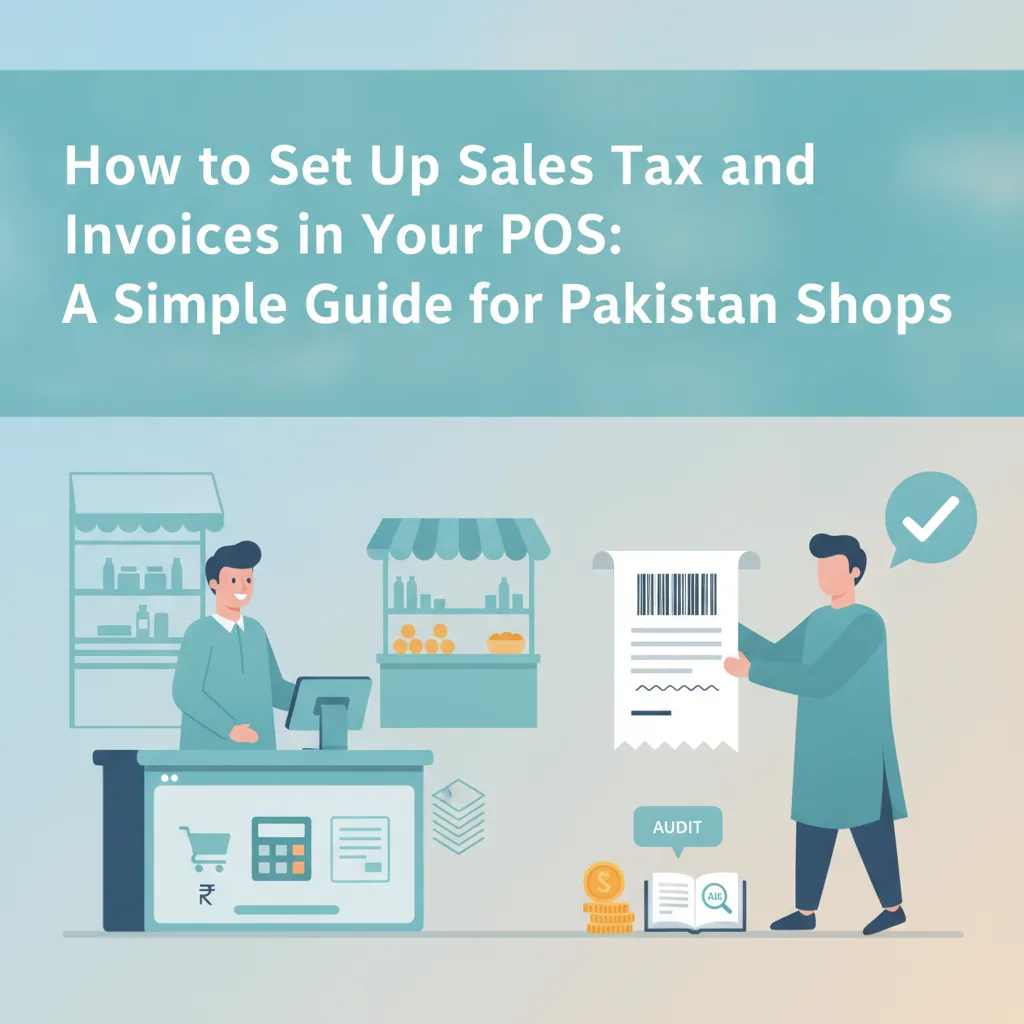
How to Set Up Sales Tax and Invoices in Your POS: A Simple Guide for Pakistani Shops
Setting up sales tax and receipts in your POS software does not have to be complicated. This practical guide walks Pakistani retailers, restaurants, and wholesalers through configuring tax rates, formatting professional customer invoices, and maintaining clean, audit-ready records.
In this article
- Understanding the Basics: How Sales Tax Works for Pakistani Shops
- Tax-Inclusive vs. Tax-Exclusive Pricing
- Step 1: Set Up Tax Categories and Rates in Your POS
- Step 2: Customize an Accurate, Professional Invoice Template
- 1. Header Information (Business Identity)
- 2. Transaction Metadata
- 3. Itemized Line Entries
- 4. Financial Summary
- 5. Footer & Store Policies
- Step 3: Train Cashiers on Tax-Related Edge Cases
- Step 4: Keep Clean, Audit-Ready Records and Shift Closings
- Checklist: The Pakistani Shop Owner's POS Tax & Invoicing Setup
- How CloudPOS Simplifies Sales Tax and Invoices in Your POS
- Set Up Your Counter for Smooth, Error-Free Billing
Every retail counter in Pakistan faces this moment eventually. A customer picks up three items, watches the cashier scan them, and frowns at the printed slip: “Bhai, why is the total higher than the shelf tag? Did you add sales tax twice? Where is your STRN?” Getting sales tax and invoices in your POS right is what prevents this. Meanwhile, at the end of the month, your accountant asks for a clean breakdown of sales tax collected versus gross revenue, and your point-of-sale system produces a single scrambled total that takes hours to reconcile.
Managing sales tax and receipts should not require a degree in tax law or hours of manual math. When your point of sale (POS) is configured correctly, tax calculation happens in fractions of a second behind the scenes. Your cashiers scan items without hesitation, your customers get transparent, itemized receipts, and your financial records stay clean and audit-ready.
Whether you run a garment boutique in Lahore, an electronics outlet in Karachi, a pharmacy in Rawalpindi, or a wholesale depot in Faisalabad, here is your step-by-step roadmap for getting sales tax and invoicing right inside your POS software.
Understanding the Basics: How Sales Tax Works for Pakistani Shops
Before touching your software settings, it helps to understand how indirect taxes are structured in Pakistan so you choose the right configuration for your specific trade:
- Federal Sales Tax on Goods: Governed by the Federal Board of Revenue (FBR) under the Sales Tax Act, the standard sales tax rate on taxable goods is 18%. Certain essential goods, medicines, and unbranded food items are exempt or zero-rated, while specific items fall under reduced rates.
- Provincial Sales Tax on Services: If you operate a service-based business (such as a dine-in restaurant, beauty salon, auto workshop, or laundry service), your tax is governed provincially by authorities like the Punjab Revenue Authority (PRA, typically 16%), Sindh Revenue Board (SRB, typically 15%), KPRA, or BRA.
- Third Schedule Goods: For many mass-market consumer packaged goods (FMCG), sales tax is assessed on the printed Maximum Retail Price (MRP) rather than the wholesale transaction value.
Once you know which authority and rate apply to your catalogue, the next decision is how prices appear to your customer: inclusive or exclusive.
Tax-Inclusive vs. Tax-Exclusive Pricing
This is where many retail store owners get tripped up:
- Tax-Inclusive (Gross Pricing): The shelf price already includes sales tax. If a shirt is tagged at PKR 2,500, the customer hands over PKR 2,500. Your POS software automatically calculates the backward tax split (e.g., Net: PKR 2,118.64 + 18% Tax: PKR 381.36 = PKR 2,500) and prints both figures on the receipt. This is standard practice for apparel, footwear, supermarkets, and general retail.
- Tax-Exclusive (Net Pricing): The shelf price is net of tax. When scanned, the POS adds 18% sales tax at the bottom of the bill. This method is common in business-to-business (B2B) wholesale, electronics, commercial equipment, and dine-in hospitality.
Step 1: Set Up Tax Categories and Rates in Your POS
Never rely on cashiers to remember tax rates or enter them manually during checkout. That practice invites billing delays, human error, and register discrepancies. Modern POS systems let you build automated tax rules that apply across your inventory.
- Create Your Core Tax Profiles: Go to your POS settings panel and establish your standard tax rules. For retail goods, create an “Standard GST (18%)” profile. For services, set up your provincial profile (e.g., “PRA Services 16%” or “SRB 15%”). Create a “Zero / Exempt (0%)” profile for tax-exempt goods.
- Map Taxes to Product Categories: Assign tax profiles at the category level rather than editing items one by one. For example, if you manage a department store, map packaged snacks and cosmetics to 18%, while mapping fresh, unbranded produce to 0%. Any new item assigned to that category automatically inherits the correct tax behavior.
- Configure Product-Level Overrides: Certain specialty items may carry unique rates. Ensure your POS allows item-level overrides so specific products (like promotional bundles or exempt baby formulas) override the general category rule without breaking the rest of your catalog.
- Select Inclusive or Exclusive Behavior per Register: If you run a hybrid business—such as an auto parts shop with an attached service bay—ensure your POS can apply inclusive pricing on retail shelf goods while adding exclusive tax on service labor lines on the same bill.
Step 2: Customize an Accurate, Professional Invoice Template
A printed receipt is a legal document, a branding touchpoint, and your first defense against customer disputes. Whether you use a 3-inch (80mm) thermal receipt printer, a 2-inch counter printer, or full A4/A5 laser invoices for wholesale deliveries, your receipt template must be configured properly.
Every retail invoice printed by your counter terminal should contain five essential sections:
1. Header Information (Business Identity)
- Registered Trading Name: The official name of your business or brand.
- Branch & Counter Identifier: Outlet address, contact phone number, and terminal ID (e.g., “Counter 02 - Gulberg Branch”).
- Tax Identifiers: Your National Tax Number (NTN) and Sales Tax Registration Number (STRN), clearly visible near the top if you are a registered taxpayer.
2. Transaction Metadata
- Unique Sequential Invoice Number: Your POS must generate unbroken, sequential numbers (e.g., INV-2026-004521). Gaps in numbering cause severe issues during annual accounting audits.
- Date and Timestamp: Crucial for warranty verification, shift reconciliation, and return validity.
- Cashier / Salesperson Name: Encourages accountability and simplifies tracking staff performance.
3. Itemized Line Entries
- Item name and size/variant details.
- Quantity purchased and unit price.
- Applicable tax indicator (e.g., showing a small “T” or “18%” next to taxable lines and “E” next to exempt lines).
- Total line amount.
4. Financial Summary
- Subtotal (Net Amount): Total value of goods before tax.
- Itemized Tax Total: Clearly labeled tax amount (e.g., “Sales Tax (18%): PKR 450.00”). Never hide tax inside an unexplained lump sum if you are charging it explicitly.
- Discounts / Vouchers: Explicitly display any coupon, promotional, or loyalty discounts subtracted.
- Net Payable (Grand Total): Bold, legible final amount.
- Tender Breakdown: Payment method used (Cash tendered, Change returned, Debit Card, or QR payment).
5. Footer & Store Policies
- Return and Exchange Policy: Clearly state your conditions (e.g., “Exchanges accepted within 7 days with original receipt and intact tags. No cash refunds.”).
- Barcode / QR Code: A scannable receipt barcode that allows cashiers to pull up the original sale immediately during returns.
- Friendly Sign-Off: Social media handles, support WhatsApp number, or a simple customer appreciation message.
Step 3: Train Cashiers on Tax-Related Edge Cases
A well-configured POS prevents mistakes, but your counter staff must understand how the system handles common checkout scenarios:
- Applying Discounts Correctly: Does your store apply discounts before or after tax? In standard accounting, discounts reduce the taxable value of the good. If a PKR 1,000 product is discounted by 20% to PKR 800, sales tax must be calculated on the discounted PKR 800 base, not the original PKR 1,000. Ensure your POS discount module works on the net base.
- Handling Returns and Credit Notes: When a customer returns an item, the POS must reverse both the inventory count and the recorded sales tax liability. If your staff manually delete an invoice or refund cash out of pocket without processing a formal POS return, your sales tax ledger will show tax collected on money you no longer have.
- Managing Offline Billing: Pakistan’s retail landscape frequently deals with internet interruptions. Your point-of-sale software must be capable of generating valid, sequentially numbered tax receipts offline, storing the cryptographic or transactional data locally, and syncing automatically once connectivity returns.
Step 4: Keep Clean, Audit-Ready Records and Shift Closings
Generating receipts is only half the battle; maintaining clean records is what keeps your business financially sound. At the end of every business day, your POS should generate two critical operational reports:
- X-Report (Mid-Day / Shift Audit): Allows the store manager to check current sales, cash drawer status, and tax totals mid-shift without closing the register.
- Z-Report (End-of-Day Closing): Resets the daily register counter, locks the daily transactions, and prints an unalterable summary of gross sales, net sales, total sales tax collected by category, discounts granted, and tender reconciliations (cash vs. card vs. bank transfers).
Archive these daily closing summaries digitally. When filing your monthly returns or working with an external tax advisor, you will not have to sift through physical receipt paper; you can simply export a comprehensive sales tax ledger directly from your POS back-office dashboard.
A Quick Note on Regulatory Integration: While small neighborhood retailers may start with basic local receipt printing, growing businesses and tiered retailers across Pakistan eventually require digital fiscal compliance. Selecting a POS platform with native regulatory compatibility—including ready support for local tax frameworks and FBR digital invoicing—saves you from costly software replacements down the road.
Checklist: The Pakistani Shop Owner's POS Tax & Invoicing Setup
Print or save this operational checklist before launching or updating your checkout counter:
- [ ] Tax Profiles Defined: Default rates (18% federal goods, provincial service rates, 0% exempt) created in software settings.
- [ ] Pricing Logic Selected: Chose tax-inclusive (retail/supermarkets) or tax-exclusive (wholesale/dining) pricing mode.
- [ ] Product Catalogue Mapped: Every category and SKU assigned to its correct tax classification.
- [ ] Header Configured: Brand name, physical outlet address, active phone number, and NTN/STRN added to the receipt layout.
- [ ] Line Item Breakdown Enabled: Receipt template shows individual quantities, unit rates, and tax flags.
- [ ] Tax Summary Formatted: Net subtotal, total tax amount, applied discounts, and grand total clearly separated.
- [ ] Sequential Numbering Active: Invoices generate consecutive numbers with no system duplicates or manual overrides.
- [ ] Payment Tender Options Set: Cash, card, and digital payment buttons active on the payment screen.
- [ ] Store Policy Printed: Clear exchange timeframe and conditions included in receipt footer.
- [ ] Daily Z-Closing SOP Established: Cashiers trained to run and file daily closing reconciliation reports every evening.
How CloudPOS Simplifies Sales Tax and Invoices in Your POS
CloudPOS is designed specifically for the daily realities of retail, wholesale, and service businesses operating in Pakistan. Instead of forcing store owners to juggle complex accounting spreadsheets or rigid desktop software, CloudPOS provides an intuitive, cloud-based platform that handles billing and record-keeping seamlessly:
- Flexible, Multi-Rate Tax Engine: Set standard, reduced, or zero-rated tax rules in seconds. Easily switch between tax-inclusive and tax-exclusive billing per category or sales channel, ensuring accurate invoices whether you run a garment store, pharmacy, electronics shop, or salon.
- Continuous Offline Billing: Internet downtime never stalls your counter. CloudPOS continues scanning barcodes, applying tax rules, and printing sequential invoices offline. The moment your connection restores, all transactional data syncs securely to the cloud.
- Centralized Multi-Store Management: Manage multiple branches across different cities from a single dashboard. Update pricing, standardize invoice designs, and review consolidated tax liabilities across all outlets without visiting each shop physically.
- Role-Based Staff Access: Protect your billing integrity. Restrict permissions so counter cashiers can ring up sales and issue receipts, while only authorized managers can approve manual discounts, process returns, or alter tax configurations.
- Comprehensive Analytics & Smart ERP: Access real-time sales reports, daily Z-closing summaries, and automated inventory tracking from any mobile device or desktop. With built-in support for digital invoicing and FBR integration, CloudPOS ensures your business remains fully compliant as you scale.
Set Up Your Counter for Smooth, Error-Free Billing
Accurate sales tax setup and professional invoicing do more than satisfy bookkeeping requirements. They build customer confidence, eliminate counter arguments, prevent cashier fraud, and give you an unclouded picture of your daily business profits. By spending an hour properly configuring your tax profiles, mapping your inventory categories, and refining your receipt template, you turn your billing counter into an efficient, professional engine.
If you are ready to modernize your checkout counter, eliminate manual billing errors, and keep clean financial records across one store or multiple branches, explore what CloudPOS can do for your business. Book a free CloudPOS demo today and see how effortless retail management can be.