
CloudPOS

GymPro: Gym Management App for Gyms and Fitness Centers

GymPro is a gym management app that helps gym owners and staff run daily work from one place. Add members, set up membership plans, mark attendance, record payments and dues, log expenses, manage trainers and check reports, all from one dashboard. You do not need paper registers or separate notes for each task.

GymPro is available as an Android app, a Web App and a Desktop App, so your team can work on the device that suits your front desk.

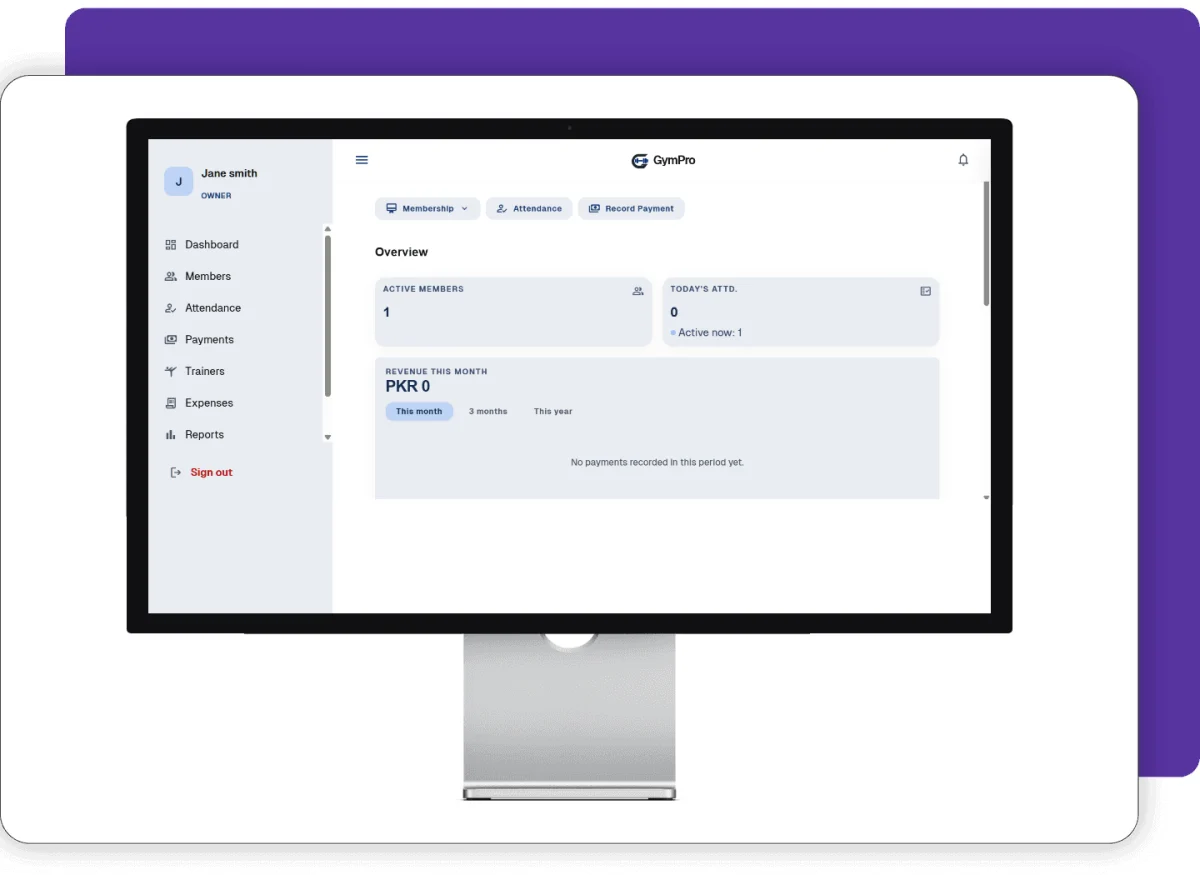
GymPro gym management app dashboard

Screenshots

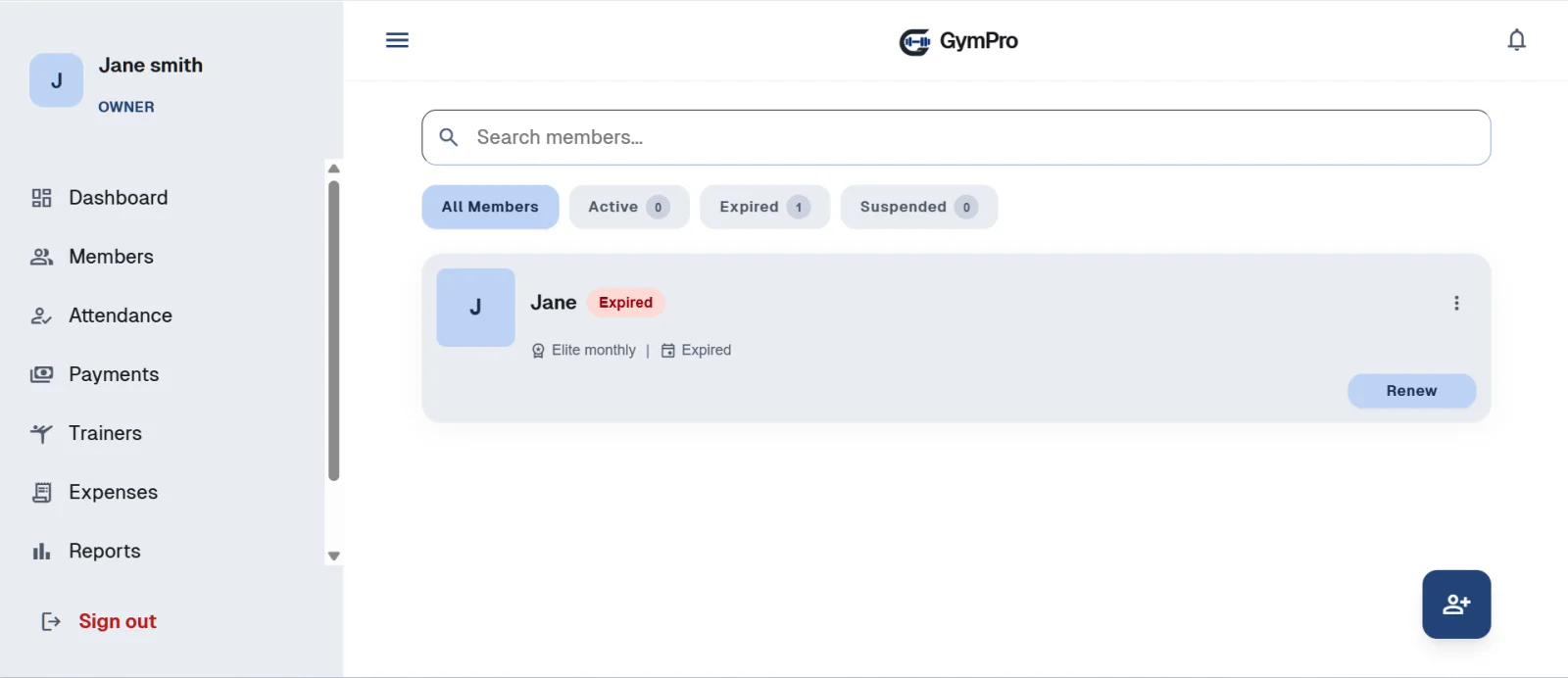
Gym member list with active, expired and suspended filters in GymPro gym management app
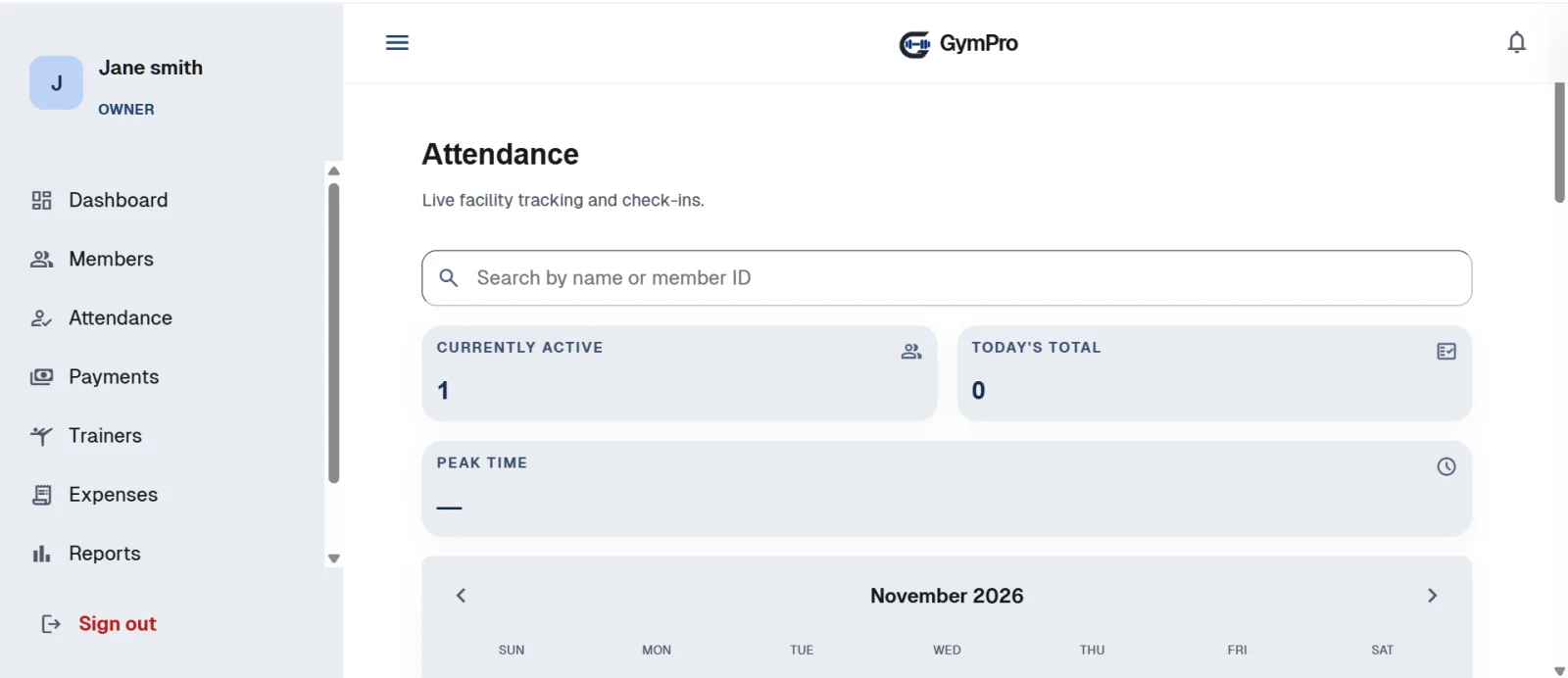
Gym attendance check-in screen with live tracking in GymPro
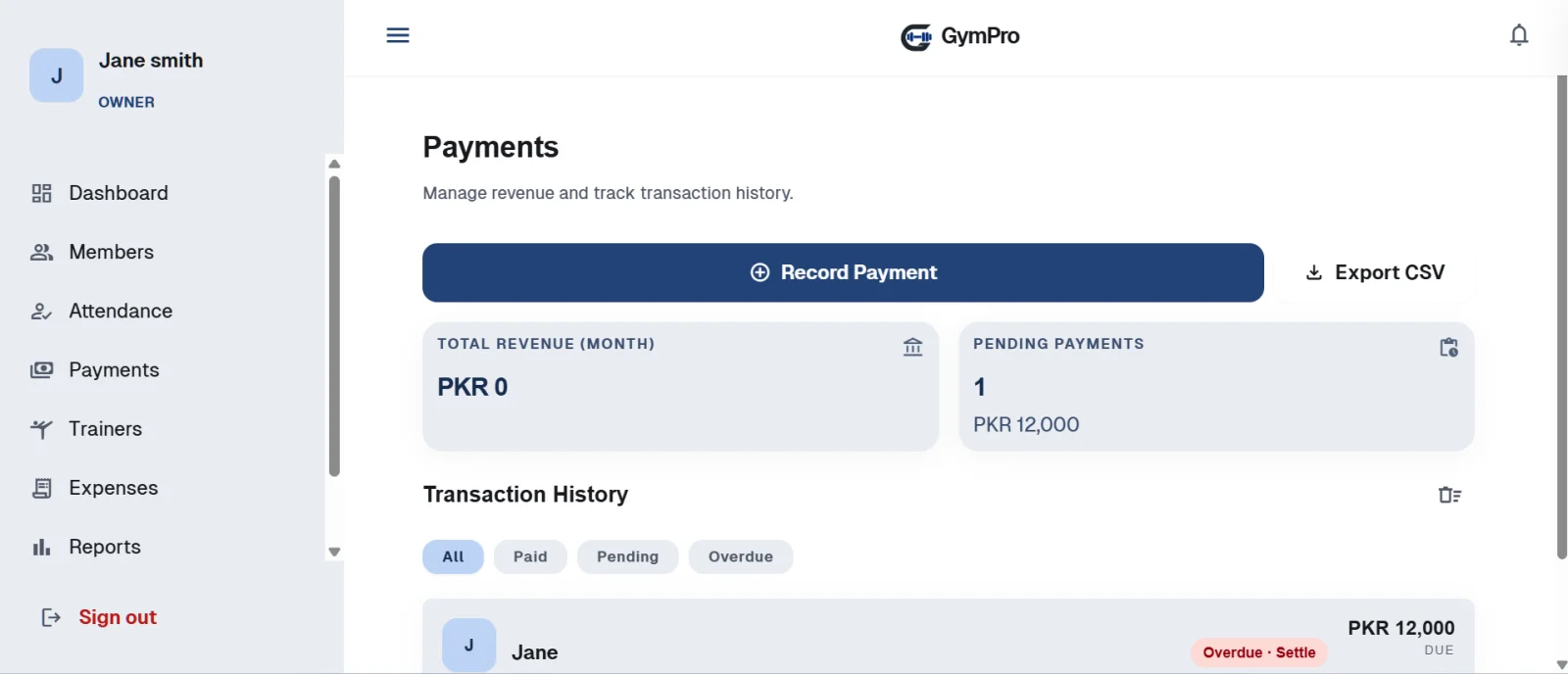
Gym payments and dues screen with transaction history in GymPro
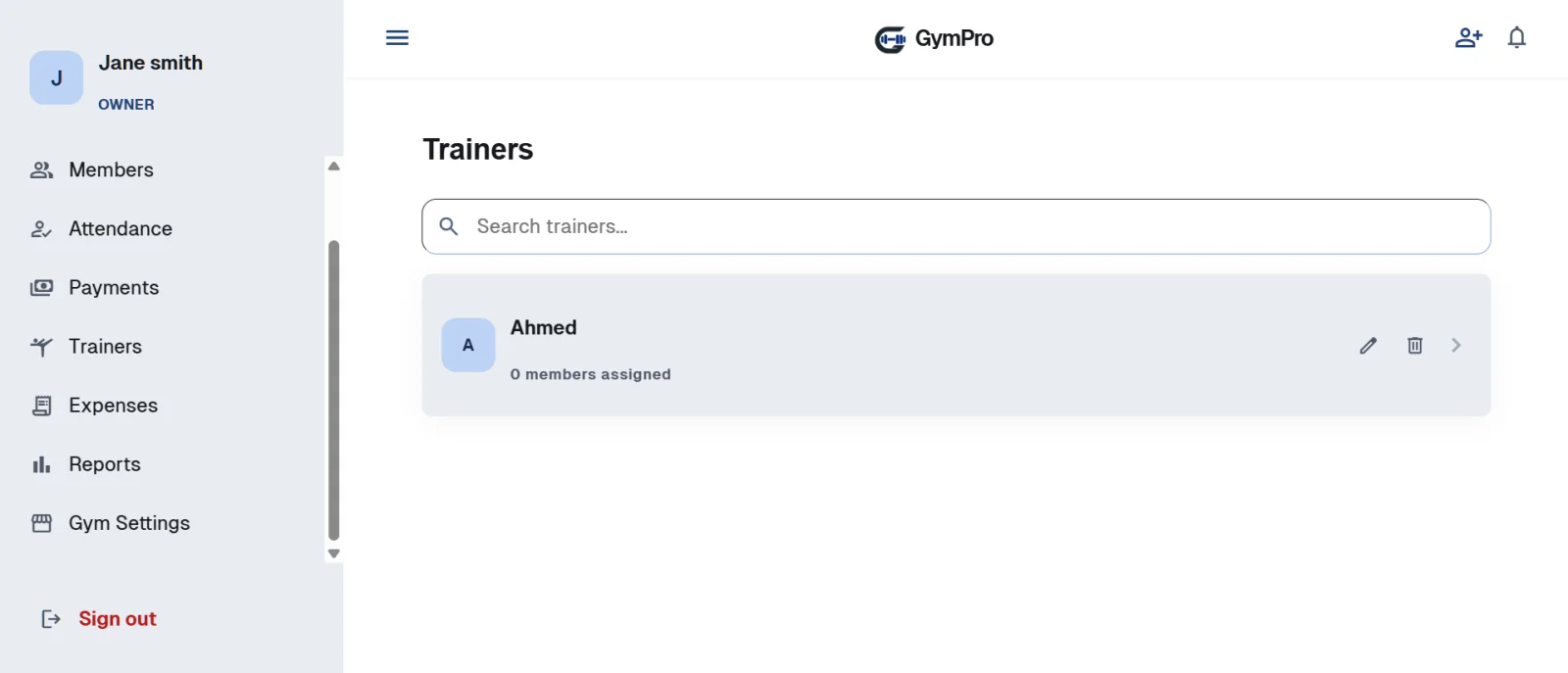
Gym trainer management screen in GymPro
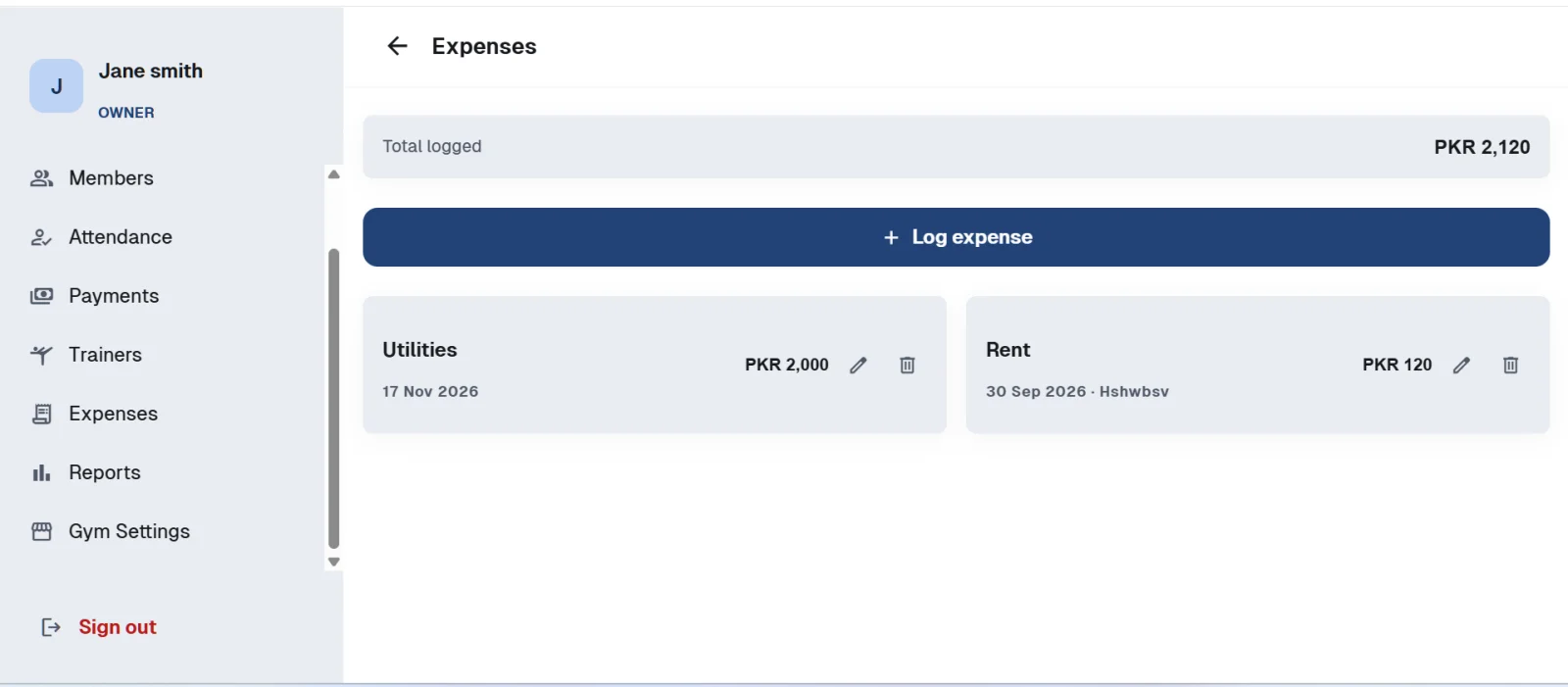
Gym expense tracking screen with total logged in GymPro
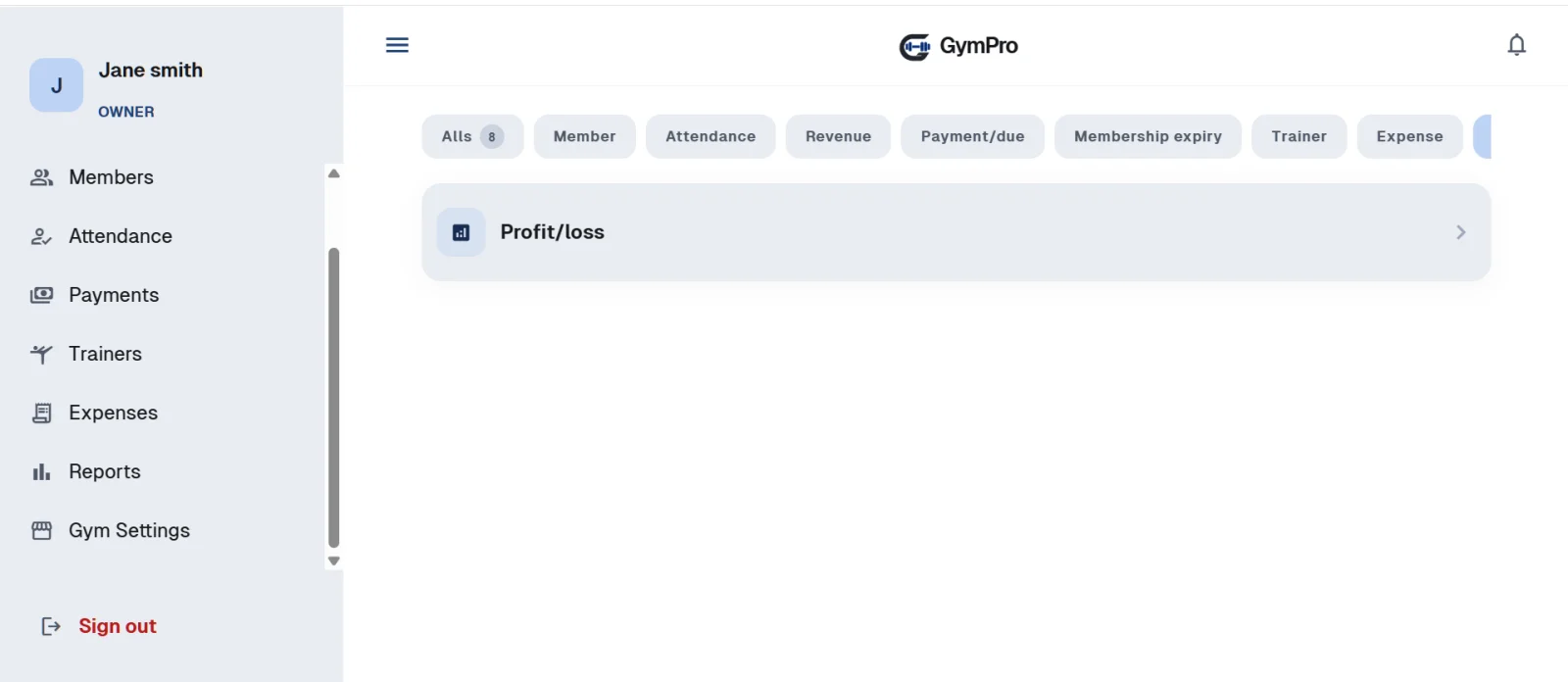
Gym reports screen in GymPro with member, attendance, revenue and profit reports

What Is GymPro Gym Management App?

GymPro is a gym management system built for the day-to-day work of a gym. It keeps member records, membership plans, attendance, payments, expenses, trainers and reports together, so owners can see how the gym is doing without searching through different registers or files.

It is made for the people who work in a gym:

Gym ownersGym owners who want to see members, revenue, expenses and profit.
Managers and receptionistsManagers and receptionists who add members, renew plans, mark attendance and record payments.
TrainersTrainers who work with batches, PT packages, workout plans and diet plans.
Language and currencyThe app works in English and Urdu. You can also choose your currency (including PKR) and your date format.

Key Features of GymPro Gym Management System

GymPro Features in Detail

From members, plans and attendance to payments, expenses, reports, trainers and staff roles, see how each part of GymPro helps you run your gym. Choose a tab to read more.

Gym Dashboard: Members, Attendance, Revenue and Dues at a Glance

When you open GymPro, the dashboard shows the main numbers of your gym on one screen:

  • Active members: how many members have an active plan.
  • Today's attendance: members checked in today, plus how many are inside the gym right now.
  • Revenue: shown for this month, the last 3 months or this year.
  • Expenses and profit: what you spent and what is left.
  • Pending dues: unpaid amounts and how many members owe them.
  • Recent activity: the latest member additions and check-ins.

Quick action buttons let staff do common jobs in one tap: Membership, Attendance, Record Payment, Renew, Expense and Add Trainer.

Gym Member Management App

GymPro keeps every member's details in one list. Staff can search by name and filter members as All, Active, Expired or Suspended. Each member card shows the plan, the status and a Renew button.

From a member's menu, staff can call the member, send a WhatsApp message, renew the plan, block, edit or delete the member.

What You Can Save for Each Member

  • Photo, full name and gender
  • Mobile number with country code
  • Batch or group class (optional)
  • Membership plan, joining date and payment date
  • Member status (Active, Expired or Suspended)
  • Paid amount, payment method and due amount
  • Discount (percent or fixed amount) and admission fee
  • Email, date of birth and address
  • Emergency contact name, phone number and relation
  • Notes and medical conditions

The due amount is worked out from the plan price, the discount and the amount paid, and staff can adjust it if needed.

Gym Membership Plans, Renewals and Expiry Tracking

You create the membership plans your gym sells. Each plan has a name, a price and a duration in days. The plan list shows how many members are on each plan, and you can edit or deactivate a plan at any time.

When staff choose a plan for a member, the expiry date is calculated automatically from the joining date. When the plan ends, the member shows as Expired and can be renewed from the member card or the member menu. A separate Membership Expiry report helps you see whose plans are ending.

GymPro also lets you add a discount to a member's plan (percent or amount) and a one-time admission fee, so the total for each new member is clear from the start.

Gym Attendance Software with Check-In, Check-Out and QR Self Check-In

The Attendance screen gives live tracking of who is in your gym. At the top you see members currently active, today's total and the peak time. A monthly calendar lets you pick any date and see its attendance records.

Daily Attendance Tools

  • Check-in and check-out: staff search a member and check them in. Members who are inside are listed with the time they have spent, and a Check out button closes the visit.
  • Late and absent list: see which members did not come.
  • Back-dated entry: add an attendance entry for an earlier date when staff forgot to mark it.
  • Member history: search a member to view their attendance history.
  • Recent activity: a feed of the latest check-ins and check-outs.

QR Self Check-In. You can print a QR code from the app and place it at the front desk. A member scans it with their own phone camera, types their phone number and is checked in. The member does not need to install an app, which keeps the front desk moving.

Gym Billing: Payments, Dues, Receipts and Invoices

The Payments screen shows the total revenue for the month and the pending payments with their total amount. Below it is the full transaction history, which you can filter as All, Paid, Pending or Overdue.

Recording a Payment

Staff pick the member and choose what the payment is for: General, Membership, PT Package or Service. Then they enter the amount, the method, the status (Paid or Pending), the date and a note.

Payment methods are Cash, Card, Online, Bank transfer and Other. In settings you choose which methods staff can use and which one is the default.

Dues and Overdue Payments

A pending payment shows as Overdue once its date has passed. Staff can settle it fully or partly from the payment list, so you always know who still owes money.

Receipts and Invoices

  • Every payment creates a receipt.
  • A full membership period creates an invoice.
  • Invoices can be shared with a member through WhatsApp or SMS.
  • Invoice settings let you set an invoice number prefix and choose what to show: owner name, contact number, address, date, admission fee, refund policy, terms and conditions, and a footer note.
  • Your billing address is printed on invoices and receipts.
  • Payments can be exported to a CSV file.

Gym Expense Tracking and Profit Reports

GymPro lets you log what the gym spends, such as rent. Each expense has a category, a date, a note and an amount. You can edit or delete an entry, and the screen shows the total logged. The Expense button on the dashboard opens the same form in one tap.

Your expenses and your payments come together on the dashboard and in the Profit/Loss report, which shows revenue, expenses and net profit for the day, month or year you select. This gives the owner a clear picture of what the gym earns after its costs.

Gym Reports for Members, Attendance, Revenue and Profit

GymPro has eight reports, so the owner can review the business without adding up figures by hand:

  • Member report: new members in the period you choose.
  • Attendance report: attendance records for the gym.
  • Revenue report: money received.
  • Payment/Due report: payments and pending dues.
  • Membership expiry report: memberships that are ending or have ended.
  • Trainer report: trainer activity.
  • Expense report: what the gym has spent.
  • Profit/Loss report: revenue, expenses and net profit.

Reports such as the Member report and the Profit/Loss report can be viewed daily, monthly or yearly, and you move between periods with simple arrows.

Gym Trainer Management, PT Packages and Class Batches

Trainers

Add your trainers from the Trainers screen or with the Add Trainer button on the dashboard, and search them by name. A separate Trainer report helps you review trainer activity. Trainers can also be given a login with their own limited permissions.

PT Packages

Create personal-training session packages that trainers can sell to members. When staff record a payment, they can mark it as a PT Package payment.

Batches and Group Classes

Set up class or session slots with a name, an optional description, the days of the week, start and end time, an optional capacity and an optional trainer. When you add a member, you can place them in a batch.

Gym Services

Save extra gym services with a service name and an amount, and record payments against them as Service payments.

Workout Plans and Diet Plans for Gym Members

Workout Management

GymPro keeps plans, exercises, assignments and progress in one place. You can build an exercise library, create workout plans and assign them to members.

Diet Plans

Create day-by-day meal plans that staff can hand out to members.

These tools help trainers and staff give members a clear plan, using the same app they already use for memberships and attendance.

Gym Fee Reminders and WhatsApp/SMS Message Templates

Reminders for Your Team

In notification settings you choose which reminders to use: membership expiring, renewal reminders and payment due alerts for overdue payments. You also set how many days before expiry the reminders should start.

Ready-Made Message Templates

GymPro includes message templates for the most common member messages, such as a welcome message, a membership expiring reminder, a payment due reminder and a renewal confirmation. Templates use placeholders such as member name, gym name, plan name, days left and amount, and the app fills them in with the real member's details. A preview shows you how the message will look.

When staff tap Share via WhatsApp (or SMS) on a member's profile or an invoice, the message opens with the member's details already filled in, ready to send.

Gym Staff Roles, Permissions and Activity Log

GymPro lets the owner give each team member their own login and decide what they can do. There are six roles, and each starts with a sensible set of permissions out of 63:

RoleDefault permissions
Owner63 of 63
Admin63 of 63
Manager50 of 63
Receptionist23 of 63
Staff11 of 63
Trainer5 of 63

The owner can fine-tune the permissions of any person, change a username, reset a password or deactivate a login. A User Permissions screen compares what each role can do, for example viewing, adding, editing or deleting members.

The Activity Log records actions such as adding a member or logging an expense, with the name of the person and the time, so you always know who did what.

Multi-Branch Gym Management and Gym Profile

Branches and Gym Profile

GymPro has a Branch Management screen where you add your gym locations. Your Gym Profile holds the gym name, phone number, email and logo, and your billing address is saved separately so it can be printed on invoices and receipts.

These details appear across the app, so members and staff see the same gym information everywhere.

Urdu and English Support, Currency and Theme Settings

If your team needs help, the Support Center lets you raise a ticket or email support, and a written Setup Guide explains the most common tasks.

  • Language: use GymPro in English or Urdu.
  • Currency: choose the currency shown on every price, invoice and report. The list includes PKR, USD, EUR and GBP, among others.
  • Date format: pick the date format your team prefers.
  • Theme: switch between light and dark mode and choose an accent colour such as teal, blue, green or purple.

How GymPro Works in Your Gym

Set Up Your Gym Profile

Enter your gym name, choose your currency and create your first gym membership plan.

Add Your Gym Staff

Create staff logins and choose a role and permissions for each team member.

Set Billing Details

Add your billing address and invoice prefix for gym invoices and receipts.

Add Gym Members

Fill in the member details and pick a membership plan. The expiry date is calculated for you. Record any payment taken now and leave the rest as due.

Mark Gym Attendance

Staff check members in from the Attendance screen, or members scan the front-desk QR code for self check-in.

Record Payments and Dues

Add a payment from the member profile or the Payments screen, and settle overdue dues fully or partly.

Share Receipts and Invoices

Send gym receipts and invoices to members through WhatsApp or SMS.

Review Reports and Profit

Check the dashboard and gym reports for members, revenue, expenses and profit.

Who Can Use GymPro Gym Management App?

Small and independent gyms

That want one app for members, plans, attendance and payments.

Fitness centers and health clubs

That need staff roles, reports and an activity log.

Personal training setups

That sell PT packages and manage trainers.

Gyms with group classes

That run batches with set days, times and capacity.

Gyms with more than one location

That add branches in the app.

GymPro Gym Management App on Android, Web and Desktop

GymPro is available as an Android gym app, a web app and a desktop app, so you can run your gym on the device that suits your team:

Android Gym Management App

For gym owners, managers and staff who work from a phone. Add members, mark attendance and record payments on the go.

Web Gym Management App

Open GymPro in any browser to manage members, plans, payments and reports.

Desktop Gym Management Software

For a front-desk computer, so receptionists can check in members and record payments through the day.

Frequently Asked Questions About GymPro Gym Management App

GymPro is a gym management app for managing members, membership plans, attendance, payments, expenses, trainers and reports from one place.

You can manage members, plans and renewals, attendance, payments and dues, invoices and receipts, expenses, trainers, PT packages, batches, workout plans, diet plans, staff roles and branches.

Yes. Staff can check members in and out, see who is inside the gym, view a calendar and a late/absent list, and add back-dated entries. Members can also check in by scanning a QR code at the front desk.

Yes. Pending payments show as overdue after their date, and staff can settle them fully or partly from the Payments screen.

Yes. Every payment creates a receipt, and a full membership period creates an invoice. You can choose what appears on your invoices, such as your address, terms and a footer note.

Yes. GymPro has six roles (Owner, Admin, Manager, Receptionist, Staff and Trainer), and the owner can fine-tune each person's permissions.

Yes. You can use the app in Urdu or English, and you can choose PKR as your currency.

GymPro gives your team reminders for expiring memberships, renewals and overdue payments, and it includes ready-made WhatsApp and SMS message templates. Staff share the message with a tap, and it opens with the member's details already filled in.

GymPro is available as an Android app, a Web App and a Desktop App.

Run Your Gym with GymPro

A gym runs on small daily tasks: adding members, renewing plans, marking attendance, collecting fees and checking the numbers. GymPro brings all of them into one gym management app, with a dashboard for the owner and clear screens for the team. Use it on Android, on the Web or on Desktop, and keep your members, payments and reports in one place.

Book a Free Demo
WhatsApp Us